Heads up: this browser is blocking local storage, so your progress will not be saved after you close the page.
First prompt · Opening
Baseline Prompt
Step 1: why this is needed and what each entry does
Open a fresh chat (Open Copilot Chat). A new chat starts with nothing in it, so the only sources are the files you attach next.
- New chat
- Copilot remembers the current conversation. Starting fresh means the answer can only come from what you attach now.
- Work vs personal Copilot
- Both can read attached files. The work app (m365.cloud.microsoft) can also reach your OneDrive and keeps data inside your organization; the personal app cannot.
Step 2: why this is needed and what each entry does
Give Copilot the only files it may use (Attach the files). Everything in the answer should trace back to these files. Attaching them is what makes the answer checkable.
- + or /
- Both open the same attach menu. Slash is faster once you know the file name.
- Upload vs OneDrive
- Upload copies the file into the chat. OneDrive points at the stored file. Either works for this lab.
- Chips above the box
- No chip, no file. If a chip is missing, Copilot will answer from general knowledge and the lab is void.
Step 3: why this is needed and what each entry does
Ask one careful question (Send the prompt). The prompt says what to produce, what to cite, and what to do when the files are silent. A vague question gets a confident guess.
- Copy prompt
- The prompts follow the C.H.A.T. frame: Context, How come, Assign task, Type of output. Copy them whole; a shortened prompt drops the guardrails.
Step 4: why this is needed and what each entry does
Trace each bullet to its file (Read every bullet). A summary that cannot be traced is an opinion. Tracing is the habit this whole course builds.
- Open the file
- Reading the file, not the summary, is the check. Copilot can name a file and still misstate it.
- A cross is the finding
- Finding the unsupported bullet is the goal of the lab, not a sign something went wrong.
Step 5: why this is needed and what each entry does
Decide what you can use (Check and record). You now know which bullets survive. Only those go anywhere.
- Five Checks
- Source: which file. Verification: did you open it. Context: did the caveats survive. Resilience: would it still hold if the data changed. Authorized Owner: who signs off before anyone acts on it.
The prompts for this lab: copy and paste
Same prompts as in the Prompts section and the Do it steps. Paste each one whole.
Overview
What we are doing
- The situation
- The project team meets next week for a status update. You have two documents to read and little time. You want a quick summary you can trust.
- Your role
- You are on the project team, getting ready for that meeting.
- Your task
- Ask Copilot to summarize two files in five bullets. Write your request with the four C.H.A.T. parts: Context, How come, Assign task, and Type of output.
- Files you need
- File 05 (05_Executive_Brief.docx) and file 03 (03_Project_Status_Notes.docx).
- Done when
- You have five bullets. Each bullet names the file that supports it. Any statement the files do not support is flagged.
- Why it matters
- A summary that invents a decision or a number ends up in the meeting minutes. Tracing every bullet to a file stops that.
Check before you finish
- Can you trace every bullet to one of the two files?
- Which statements do the files not support?
How to do it: the basic steps
5 steps, one screen each. Select the ? on a card for why the step is needed and what each entry does.
- Open a fresh chat (Open Copilot Chat)
Why: A new chat starts with nothing in it, so the only sources are the files you attach next.
- m365.cloud.microsoft (work) or the Copilot app
- Chat
- New chat
Sign in at m365.cloud.microsoft with your work account, or open the Copilot app you have access to. Select Chat in the left pane, then New chat so nothing from an earlier chat leaks in.
- Give Copilot the only files it may use (Attach the files)
Why: Everything in the answer should trace back to these files. Attaching them is what makes the answer checkable.
- + (or type /)
- Upload (or OneDrive)
- 05_Executive_Brief.docx and 03_Project_Status_Notes.docx
- Chips appear
Select the + at the left of the chat box (or type /). Choose Upload from this device, or OneDrive if you saved them there. Pick 05_Executive_Brief.docx and 03_Project_Status_Notes.docx. Each file shows as a chip above the box.
- Ask one careful question (Send the prompt)
Why: The prompt says what to produce, what to cite, and what to do when the files are silent. A vague question gets a confident guess.
- Copy prompt
- Paste
- Send
Select Show the prompts below, then Copy under Baseline prompt. Paste it into the chat box and select Send. Copilot returns a short bulleted summary that names the file behind each bullet.
- Trace each bullet to its file (Read every bullet)
Why: A summary that cannot be traced is an opinion. Tracing is the habit this whole course builds.
- Open file 05 or 03
- Find the line
- Mark it
For each bullet, open the file it names and find the sentence that supports it. Write a tick for supported, a cross for not found. Expect at least one cross: it is planted.
- Decide what you can use (Check and record)
Why: You now know which bullets survive. Only those go anywhere.
- Unsupported bullets?
- Five Checks
Count the bullets you could not trace. Run the Five Checks: Source, Verification, Context, Resilience, Authorized Owner. Then mark the lab steps done.
= why the step is needed and what each entry does. Like this = something you select or click. Like this = something you type or paste.
Microsoft changes these screens often; a label on your screen may differ slightly. If a button is missing, your organization may not have turned the feature on: use the Path B steps.
Where to click
- Copilot
- +
- Upload
- files 05 and 03
Watch where to click Real screenshots (consumer Copilot) + illustrations
The demo shows where to click, step by step. Steps marked Real screen are screenshots from Copilot (consumer version); your work Microsoft 365 Copilot may look slightly different. The other steps are drawings. The list under the player is the same steps as text.
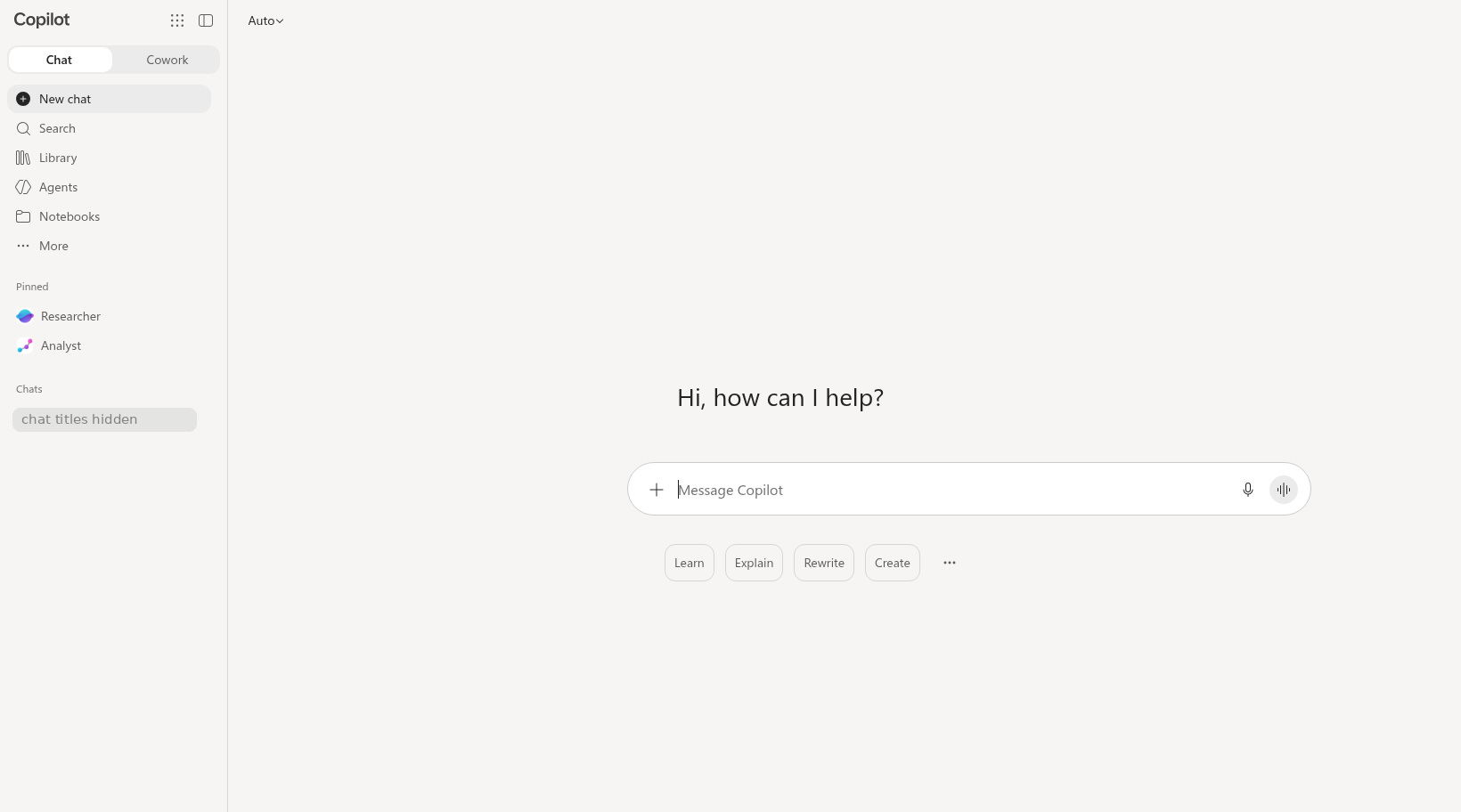
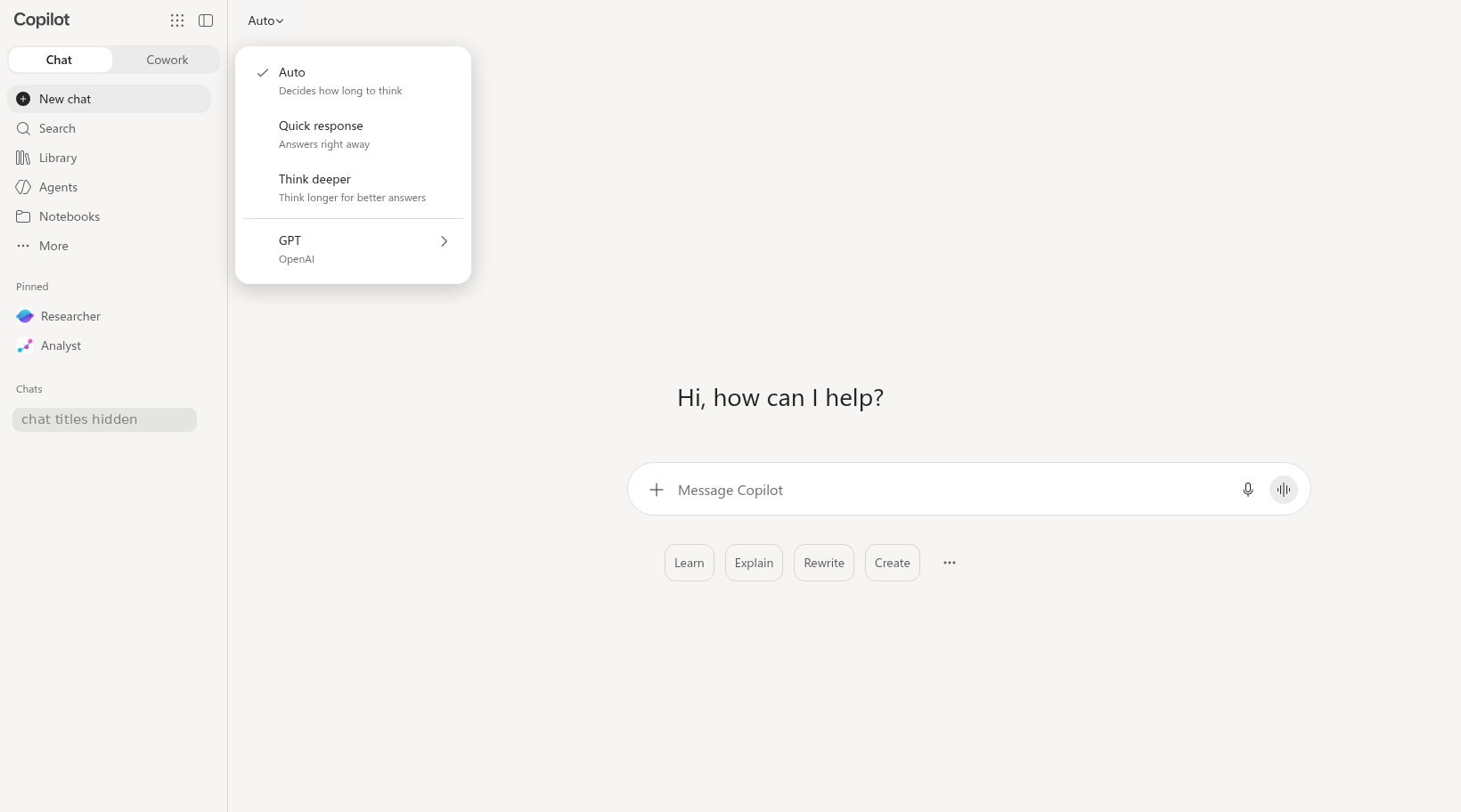
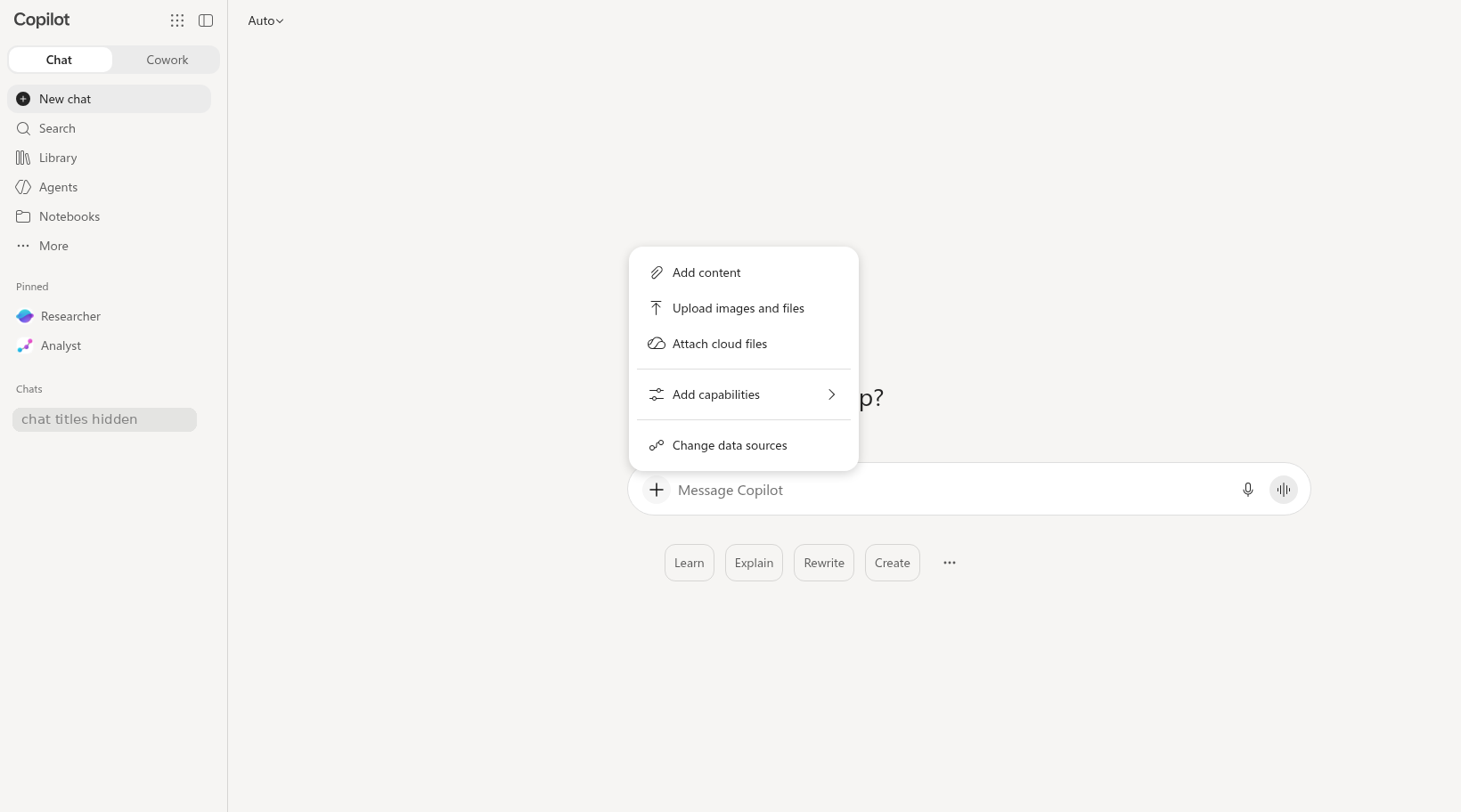
Annotated screenshots (consumer Copilot, opens the image): chat home empty auto model selector plus button menu
Do it: step by step
Check off each step as you go. Your progress saves in this browser.
Path B (Copilot Chat only)? These steps are for Path A. Use the Path B steps in the Files step instead.
Prompts: vague vs detailed
Follow the brackets. The detailed prompt is built from the four C.H.A.T. parts: [Context], [How come], [Assign task], and [Type of output]. Keep the labels when you paste it; Copilot reads them fine, and they help you check that each part is there.
Compare a vague prompt with a detailed, source-checkable prompt. The activity below separates the request from the Guardrails you need before use.
Use CHATPROMPT to shape the request: Context, How come (why you need it), Assign task, Type of output, Persona, References, Optimize, Modularize, Progression, and Transcendence (expert level: the next useful question after the checked answer). Add Guardrails separately for training-only input, source checking, limits, and the Authorized Owner.
Baseline prompt
Summarize these two files.
[Context] We are preparing for a project status meeting about the sample Service Request Improvement Project. I shared two training files: file 05 (Executive Brief) and file 03 (Project Status Notes).
[How come] I need an accurate briefing to prepare for the meeting. It is for preparation only, not for making decisions.
[Assign task] Using only those two files, summarize the project's purpose, current status, confirmed decisions, and unresolved questions.
[Type of output] Five bullets. End each bullet with the file that supports it (file 05 or file 03). Mark any statement that neither file supports as "Not supported."
Why the detailed version works (letter by letter)
- CContext
We are preparing for a project status meeting about the sample Service Request Improvement Project
- HHow come
I need an accurate briefing to prepare for the meeting
- AAssign task
summarize the project's purpose, current status, confirmed decisions, and unresolved questions
- TType of output
Five bullets. End each bullet with the file that supports it
- RReference
Using only those two files
- GGuardrail: make it checkable
Mark any statement that neither file supports as "Not supported."
- GGuardrail: people decide
not for making decisions
Quiz
Self-check only. Answers stay on your device.
Path B Text Pack and downloads
Download the practice files (Path A)
Path A (full access): these downloads are for you. Save them where Copilot can reach them (OneDrive for the Office app labs). Path B: nothing to download; the files are below as text, ready to paste. Path C: nothing to download; read the text below when you check sources.
Path B (Chat only): short steps
- Select Copy all files + prompt below, paste it into the chat, and select Send.
- For each bullet in the answer, find the line in file 05 or file 03 (below) that supports it.
These prompts work on both paths. They say "I shared," which fits whether you attach or paste the files.
[Context] We are preparing for a project status meeting about the sample Service Request Improvement Project. I shared two training files: file 05 (Executive Brief) and file 03 (Project Status Notes).
[How come] I need an accurate briefing to prepare for the meeting. It is for preparation only, not for making decisions.
[Assign task] Using only those two files, summarize the project's purpose, current status, confirmed decisions, and unresolved questions.
[Type of output] Five bullets. End each bullet with the file that supports it (file 05 or file 03). Mark any statement that neither file supports as "Not supported."
File 05 - Executive Brief (memo source) (2,234 characters)
FICTIONAL TRAINING FILE - The City of Fernhollow, its staff, residents and data are invented for the CPS HR Microsoft 365 Copilot workshop. Do not use real work data.

EXECUTIVE BRIEF: SERVICE REQUEST IMPROVEMENT PROJECT
====================================================
Prepared for: Renata Vossberg, Department Director · Prepared by: Jordan Ekwueme, Senior Analyst · August 29, 2026 · Phase 1 (Diagnosis) findings


Purpose
-------
This brief summarizes what Phase 1 learned about the growth in the service-request backlog and proposes options for Phase 2. It is a briefing, not a decision document.

Findings
--------
  1. The backlog doubled in five months. Open requests at the end of the month rose from 135 in January 2026 to 270 in May 2026.
  2. Residents are waiting longer. Average days to resolve rose from 6.1 days in January to 8.4 days in June 2026.
  3. Many requests start in the wrong place. In a sample of 300 requests from April and May, 31 percent were first routed to the wrong unit and had to be re-routed, adding an estimated 1 to 2 days each. This is a sample estimate, not a count of all requests.
June was an exception: staff completed more requests than were received (completion rate above 100 percent) by clearing older requests during a focused effort, so the backlog fell in June.

Recommendations
---------------
  1. Add a single intake triage step so each request is routed to the right unit the first time.
  2. Publish a weekly backlog report to unit supervisors.
  3. Send residents a plain-language status update when a request is acknowledged and when it is extended.

Risks
-----
  - Staffing: 4 of 22 positions are vacant; triage may move workload rather than reduce it.
  - Data quality: August data will be incomplete because of the planned case-system migration.
  - Equity: residents who do not use the online portal may not benefit equally from portal-based status updates.

Next steps
----------
  - Phase 2 (Design): September and October 2026.
  - Proposed pilot: November 2026 through January 2027, if approved by the Department Director.
  - Results review: February 2027.

Note: This brief does not set deadlines. Response deadlines are set only by Procedure SR-100.
File 03 - Project Status Notes (1,867 characters)
FICTIONAL TRAINING FILE - The City of Fernhollow, its staff, residents and data are invented for the CPS HR Microsoft 365 Copilot workshop. Do not use real work data.

SERVICE REQUEST IMPROVEMENT PROJECT - STATUS NOTES
==================================================
Project sponsor: Malcolm Treadwell, Deputy Director · Project lead: Jordan Ekwueme · Status as of October 2, 2026


Project purpose
---------------
Reduce the service-request backlog and shorten the time residents wait for a response, without reducing service quality or fairness, and bring practice into line with Procedure SR-100 Rev. 3 (5-business-day response deadline).

Current status
--------------
The project is in Phase 2 of 3 (Design). Phase 1 (Diagnosis) closed on August 29, 2026, with the executive brief. Phase 2 is on schedule. Phase 3 (Pilot) is planned for November 2026 through January 2027, subject to Director approval.

Confirmed decisions (approved by the project sponsor)
-----------------------------------------------------
  - Decision 1 (Sept 8): Publish a weekly backlog report to all unit supervisors starting October 5, 2026.
  - Decision 2 (Sept 22): Design the pilot around a single intake triage step staffed by the Intake team.

Unresolved questions
--------------------
  - Whether to add Saturday intake hours during the pilot (proposed by the Intake Lead; not decided).
  - Whether the Unit Supervisor can delegate extension approvals to senior staff (requires a procedure revision; not decided).
  - How first-contact resolution should be defined for reporting (two definitions in use).

Risks
-----
  - Four of 22 Resident Services positions are vacant.
  - August data are incomplete because of the case-system migration.

Next milestone
--------------
Pilot design review with the Deputy Director, target date October 27, 2026 (target, not a commitment).
Path C (Watch and verify): Watch the trainer's run, then check each bullet against files 05 and 03 in the Text Pack.
Debrief question: Can every bullet be traced to one of the two files?