Heads up: this browser is blocking local storage, so your progress will not be saved after you close the page.
Lab 13 · Module 3 · Automate and Synthesize
Notebook Briefing and Audio
Step 1: why this is needed and what each entry does
Open the notebook workspace (Open Copilot Notebooks). Only a work or school account with a Microsoft 365 Copilot license has Notebooks. The personal Copilot app does not.
- m365.cloud.microsoft
- The Microsoft 365 Copilot app on the web. The same account you use for Outlook and Teams at work.
- Notebooks
- A notebook is a workspace where Copilot answers only from the files you put in it. Ordinary Copilot Chat can pull from anything it can reach; a notebook cannot.
- No Notebooks entry
- Notebooks need a Microsoft 365 Copilot license and OneDrive. If the entry is missing, nothing is wrong with you: the organization has not switched it on.
Step 2: why this is needed and what each entry does
Start an empty notebook and name it (Create the notebook). An empty notebook knows nothing. Everything it says later comes from what you add next.
- + New notebook
- Creates an empty notebook that belongs to you. Nobody else sees it unless you share it.
- Name
- Name it after the project, not the task, so you can keep adding files to it later.
Step 3: why this is needed and what each entry does
Give it the only files it may use (Add the four references). The references are the whole universe for this notebook. If a fact is not in these four files, the notebook should say so.
- Add references
- References are the files, pages or links the notebook reads. Word, PowerPoint, Excel, PDF, OneNote pages and links all work.
- OneDrive or Upload
- Files already in OneDrive are the easy path. Upload works too; it copies the file into your OneDrive.
- All four in the list
- Check the list before you ask anything. A missing file means a missing source, and the briefing will silently leave that part out.
Step 4: why this is needed and what each entry does
Ask one careful question (Ask for the briefing). The prompt tells the notebook what to produce, what to cite, and what to do when the files are silent.
- Chat box
- This chat only sees the references. That is the point of a notebook.
- Briefing prompt
- It asks for a short executive briefing, a citation for every fact, and the words not in these references when a file is silent. Those three parts are what make the result checkable.
- Citation numbers
- Each number links to the file and passage the fact came from. No number, no trust.
Step 5: why this is needed and what each entry does
Check two facts against the files (Open two citations). A citation is a claim that the file says this. Opening it is how you find out whether that is true.
- Citation number
- Selecting it opens the source file at the cited passage. Two is the minimum; the riskiest claims are the ones to pick.
- Matches or differs
- A differs result is not a failure of the lab. It is the finding. That claim does not go in the briefing until it is fixed.
Step 6: why this is needed and what each entry does
Turn the files into a short spoken summary (Optional: audio overview). Useful for a commute. Risky because a confident voice sounds truer than a cautious file. Listen for that gap.
- Quick create
- Also makes written outputs (a summary, a FAQ, a plan). Audio overview is one option.
- Format, voice, length
- Choose the shortest length for a test. Longer audio adds filler, and filler is where overstatement hides.
- Delete and regenerate
- The audio is a snapshot. New references do not change it until you make it again.
Step 7: why this is needed and what each entry does
Decide what you can send (Check and record). The briefing is only as good as the two citations you opened. Record the result before you move on.
- Not in these references
- The notebook refusing to invent is the win. A notebook that always answers is the one to worry about.
- Five Checks
- Source: which file. Verification: did you open it. Context: does the briefing keep the file's caveats. Resilience: what if the file is out of date. Authorized Owner: who signs off on sending it.
Step 3: the four references to add
Path A: these four files from folder 12 (download them in the Files step and save them to OneDrive first). Path B: the Files step has the same four as text.
Service Request Improvement Project
12A_Executive_Brief.docx
12B_Resident_Survey_Summary.docx
12C (folder 12)
12D (folder 12)
Step 4: the briefing prompt, copy and paste into the notebook chat
Paste it as one block and select Send. The same prompt is under Prompts further down the page.
Overview
What we are doing
- The situation
- Management wants an executive briefing on the project. You have four reference files and a Copilot Notebook that answers only from them.
- Your role
- You are the analyst who writes the briefing.
- Your task
- Build a Copilot Notebook (a workspace where Copilot answers only from files you add) from four files. These files become its references (the files the Notebook answers from). Then ask for a cited briefing (each fact links to the file it came from).
- Files you need
- Folder 12 (files 12A to 12D).
- Done when
- You have a cited briefing. You opened two of its citations and confirmed that each file says what the briefing says.
- Why it matters
- A briefing with citations is checkable. Opening two citations and finding what the file really says is how you earn the right to send it.
- Good to know
- If the Notebook says “not in these references,” it is working correctly.
Check before you finish
- Does every fact in the briefing have a citation?
How to build the notebook: the basic steps
Seven steps, one screen each. Select the ? on a card for why the step is needed and what each entry does.
- Open the notebook workspace (Open Copilot Notebooks)
Why: Only a work or school account with a Microsoft 365 Copilot license has Notebooks. The personal Copilot app does not.
- m365.cloud.microsoft
- Notebooks (left pane)
Sign in at m365.cloud.microsoft with your work account. Select Notebooks in the left pane (or go straight to m365.cloud.microsoft/notebooks). No Notebooks entry? Your organization has not turned it on, or the account has no Copilot license. Use the Path B steps instead.
- Start an empty notebook and name it (Create the notebook)
Why: An empty notebook knows nothing. Everything it says later comes from what you add next.
- + New notebook
- Name
Select + New notebook. Select the name at the top and type Service Request Improvement Project. It saves on its own.
- Give it the only files it may use (Add the four references)
Why: The references are the whole universe for this notebook. If a fact is not in these four files, the notebook should say so.
- Add references (or +)
- OneDrive or Upload
- 12A, 12B, 12C, 12D
- Add
Select Add references (the + in the References pane). Pick OneDrive if you saved the files there, or Upload from your computer. Select 12A_Executive_Brief.docx, 12B_Resident_Survey_Summary.docx, 12C and 12D, then Add. All four should appear in the References list.
- Ask one careful question (Ask for the briefing)
Why: The prompt tells the notebook what to produce, what to cite, and what to do when the files are silent.
- Chat box
- Copy prompt
- Paste
- Send
Select the chat box at the bottom of the notebook. Select Copy prompt below (the Briefing prompt), paste it in, and select Send. The answer should have a citation number after every fact.
- Check two facts against the files (Open two citations)
Why: A citation is a claim that the file says this. Opening it is how you find out whether that is true.
- Citation number
- Reference opens
- Compare
Select the citation number behind two of the recommendations. The reference opens at the passage. Read it and ask: does the file say exactly this, or did Copilot round it up? Write down one word, matches or differs, for each.
- Turn the files into a short spoken summary (Optional: audio overview)
Why: Useful for a commute. Risky because a confident voice sounds truer than a cautious file. Listen for that gap.
- Created content
- Quick create
- Audio overview
- Generate
In the notebook open Created content, then Quick create, then Audio overview. Pick a format, voice and length, then Generate. Put on headphones. If you add references later, delete the audio and generate it again. Audio needs at least one reference, has a daily limit, and may not be turned on for you.
- Decide what you can send (Check and record)
Why: The briefing is only as good as the two citations you opened. Record the result before you move on.
- Citations on every fact?
- Not in these references?
- Five Checks
Ask: does every fact carry a citation? Did the notebook say not in these references anywhere? That is correct behaviour, not an error. Run the Five Checks: Source, Verification, Context, Resilience, Authorized Owner. Then mark the lab steps done.
= why the step is needed and what each entry does. Like this = something you select or click. Like this = something you type or paste.
Copilot Notebooks changes often; labels on your screen may differ slightly. Audio overview and some options depend on your organization's settings.
Where to click
- Copilot
- Notebooks
- New notebook
- Add references
- folder 12
Watch where to click Real screenshots (consumer Copilot) + illustrations
The demo shows where to click, step by step. Steps marked Real screen are screenshots from Copilot (consumer version); your work Microsoft 365 Copilot may look slightly different. The other steps are drawings. The list under the player is the same steps as text.
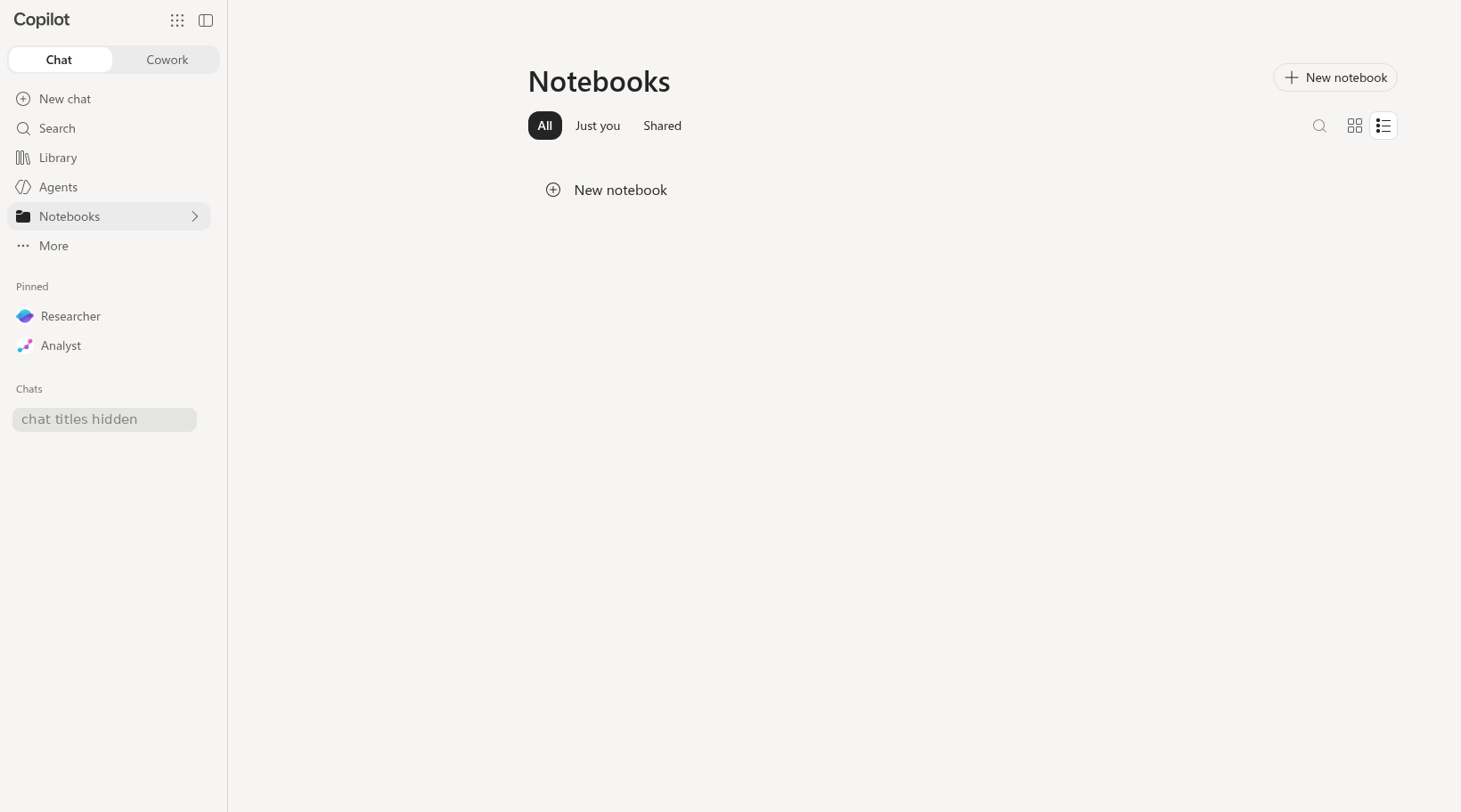
Annotated screenshots (consumer Copilot, opens the image): notebooks page
Do it: step by step
Check off each step as you go. Your progress saves in this browser.
Prompts: weak vs strong
Follow the brackets. The detailed prompt is built from the four C.H.A.T. parts: [Context], [How come], [Assign task], and [Type of output]. Keep the labels when you paste it; Copilot reads them fine, and they help you check that each part is there.
Compare a vague prompt with a detailed, source-checkable prompt. The activity below separates the request from the Guardrails (limits you add, such as "cite the source" or "do not decide for a person") you need before use.
Briefing prompt (required)
Summarize my notebook.
[Context] I am preparing an executive briefing on the Service Request Improvement Project. I shared four documents (files 12A to 12D).
[How come] I need a briefing where every fact can be checked against the file it came from.
[Assign task] Create an executive briefing from the four documents I shared (files 12A to 12D).
[Type of output] Cover purpose, key findings, where the sources agree, where they conflict, risks, recommendations, and unanswered questions. Cite the file behind every factual statement.
Why the detailed version works (letter by letter)
- CContext
I am preparing an executive briefing on the Service Request Improvement Project
- HHow come
I need a briefing where every fact can be checked against the file it came from
- AAssign task
Create an executive briefing
- TType of output
purpose, key findings, where the sources agree, where they conflict, risks, recommendations, and unanswered questions
- RReference
from the four documents I shared
- GGuardrail: make it checkable
Cite the file behind every factual statement
Follow-up
Is this enough?
[Context] Same chat as the briefing prompt, with the same four documents I shared.
[How come] I need to know the limits of these sources before anyone uses the briefing to make a recommendation.
[Assign task] What information would need to be added before these documents could support a recommendation?
[Type of output] A short list of the missing information.
Why the detailed version works (letter by letter)
- CContext
Same chat as the briefing prompt
- HHow come
I need to know the limits of these sources
- OOptimize: refine and recheck
What information would need to be added
- GGuardrail: people decide
before these documents could support a recommendation
Quiz
Self-check only. Answers stay on your device.
Path B Text Pack and downloads
Download the practice files (Path A)
Path A (full access): these downloads are for you. Save them where Copilot can reach them (OneDrive for the Office app labs). Path B: nothing to download; the files are below as text, ready to paste. Path C: nothing to download; read the text below when you check sources.
Path B (Chat only): short steps
- Select Copy all files + prompts for this lab below, paste it into the chat, and select Send. It includes the briefing prompt and the optional follow-up.
- Pasted text has no clickable citations. For two recommendations, find the line in the pasted file that supports each one.
- Skip the audio overview.
[Context] I am preparing an executive briefing on the Service Request Improvement Project. I shared four documents (files 12A to 12D).
[How come] I need a briefing where every fact can be checked against the file it came from.
[Assign task] Create an executive briefing from the four documents I shared (files 12A to 12D).
[Type of output] Cover purpose, key findings, where the sources agree, where they conflict, risks, recommendations, and unanswered questions. Cite the file behind every factual statement.
[Context] Same chat as the briefing prompt, with the same four documents I shared.
[How come] I need to know the limits of these sources before anyone uses the briefing to make a recommendation.
[Assign task] What information would need to be added before these documents could support a recommendation?
[Type of output] A short list of the missing information.
File 12A - Executive Brief (notebook reference) (2,234 characters)
FICTIONAL TRAINING FILE - The City of Fernhollow, its staff, residents and data are invented for the CPS HR Microsoft 365 Copilot workshop. Do not use real work data.

EXECUTIVE BRIEF: SERVICE REQUEST IMPROVEMENT PROJECT
====================================================
Prepared for: Renata Vossberg, Department Director · Prepared by: Jordan Ekwueme, Senior Analyst · August 29, 2026 · Phase 1 (Diagnosis) findings


Purpose
-------
This brief summarizes what Phase 1 learned about the growth in the service-request backlog and proposes options for Phase 2. It is a briefing, not a decision document.

Findings
--------
  1. The backlog doubled in five months. Open requests at the end of the month rose from 135 in January 2026 to 270 in May 2026.
  2. Residents are waiting longer. Average days to resolve rose from 6.1 days in January to 8.4 days in June 2026.
  3. Many requests start in the wrong place. In a sample of 300 requests from April and May, 31 percent were first routed to the wrong unit and had to be re-routed, adding an estimated 1 to 2 days each. This is a sample estimate, not a count of all requests.
June was an exception: staff completed more requests than were received (completion rate above 100 percent) by clearing older requests during a focused effort, so the backlog fell in June.

Recommendations
---------------
  1. Add a single intake triage step so each request is routed to the right unit the first time.
  2. Publish a weekly backlog report to unit supervisors.
  3. Send residents a plain-language status update when a request is acknowledged and when it is extended.

Risks
-----
  - Staffing: 4 of 22 positions are vacant; triage may move workload rather than reduce it.
  - Data quality: August data will be incomplete because of the planned case-system migration.
  - Equity: residents who do not use the online portal may not benefit equally from portal-based status updates.

Next steps
----------
  - Phase 2 (Design): September and October 2026.
  - Proposed pilot: November 2026 through January 2027, if approved by the Department Director.
  - Results review: February 2027.

Note: This brief does not set deadlines. Response deadlines are set only by Procedure SR-100.
File 12B - Resident Survey Summary (1,032 characters)
FICTIONAL TRAINING FILE - The City of Fernhollow, its staff, residents and data are invented for the CPS HR Microsoft 365 Copilot workshop. Do not use real work data.

RESIDENT SURVEY SUMMARY - SERVICE REQUESTS
==========================================
Fernhollow Resident Services · Fielded July 7-25, 2026 · 212 responses (online and phone) · Preliminary results


Key results (preliminary)
-------------------------
  - 64 percent were satisfied or very satisfied with the outcome of their most recent request.
  - 41 percent were satisfied with how long it took to hear back.
  - Preferred way to receive status updates: phone call or text 46 percent; email 33 percent; online portal 21 percent.
  - Residents 65 and older were less likely to use the portal (12 percent) than residents under 65 (27 percent).
  - Open-ended comments most often mentioned 'not knowing what is happening' with a request.

Note: The sample is not random and may not represent all residents. Results are preliminary and may change after weighting.
File 12C - Peer Practices Scan (1,187 characters)
FICTIONAL TRAINING FILE - The City of Fernhollow, its staff, residents and data are invented for the CPS HR Microsoft 365 Copilot workshop. Do not use real work data.

PEER PRACTICES SCAN - SERVICE REQUEST INTAKE
============================================
Prepared by: Jordan Ekwueme · September 2026 · Training peer jurisdictions

We spoke with staff in three training peer jurisdictions about how they handle service-request intake.

Town of Alderbrook
------------------
Added a single triage desk in 2025. Staff report that re-routing 'dropped noticeably' but have not measured it. Text-message status updates are sent at acknowledgment and closing.

Cedar Point County
------------------
Uses a portal-only status page. Staff said older residents call the main line to ask for status, which adds phone volume.

Ridgemoor Valley Water District
-------------------------------
Uses a rotating 'first responder' analyst for intake. Reported that triage may work best with at least two trained staff per shift.

Our read
--------
Triage appears promising, but peer results are self-reported and not measured. Portal-only updates may disadvantage residents who prefer phone or text.
File 12D - Staffing and Workload Note (803 characters)
FICTIONAL TRAINING FILE - The City of Fernhollow, its staff, residents and data are invented for the CPS HR Microsoft 365 Copilot workshop. Do not use real work data.

STAFFING AND WORKLOAD NOTE
==========================
From: Priya Halvorsen, Unit Supervisor · September 30, 2026

Resident Services has 22 authorized positions; 4 are vacant as of September 30, 2026. Two recruitments are open.
In my staff interviews, intake staff estimated that 'about a quarter' of requests are sent to the wrong unit first. This is lower than the 31 percent in the executive brief sample; the two were measured differently.
If a triage step is piloted, it would likely need two trained staff per shift, which may not be possible until vacancies are filled.
Recommendation: start the pilot in one or two units only.
Path C (Watch and verify): Check my briefing's citations against the folder 12 files.
Debrief question: Did anything in the audio sound more certain than the written sources?