Heads up: this browser is blocking local storage, so your progress will not be saved after you close the page.
Lab 1 · Module 1 · Trust But Verify
Validate and Correct
Step 1: why this is needed and what each entry does
Open a fresh chat (Open Copilot Chat). A new chat starts with nothing in it, so the only sources are the files you attach next.
- New chat
- Copilot remembers the current conversation. Starting fresh means the answer can only come from what you attach now.
- Work vs personal Copilot
- Both can read attached files. The work app (m365.cloud.microsoft) can also reach your OneDrive and keeps data inside your organization; the personal app cannot.
Step 2: why this is needed and what each entry does
Give Copilot the only files it may use (Attach the files). Everything in the answer should trace back to these files. Attaching them is what makes the answer checkable.
- + or /
- Both open the same attach menu. Slash is faster once you know the file name.
- Upload vs OneDrive
- Upload copies the file into the chat. OneDrive points at the stored file. Either works for this lab.
- Chips above the box
- No chip, no file. If a chip is missing, Copilot will answer from general knowledge and the lab is void.
Step 3: why this is needed and what each entry does
Ask for the comparison, then the fix (Run Prompt 1, then Prompt 2). Prompt 1 finds the differences. Prompt 2 turns them into corrected wording. Same chat, so Prompt 2 can see Prompt 1.
- Same chat
- Prompt 2 says things like the table above. In a new chat there is no table above.
- The table
- Each row: the claim in file 01, what file 02 says, and a risk level. The risk column is Copilot's opinion; the next step tests it.
Step 4: why this is needed and what each entry does
Check the five riskiest rows against file 02 (Open the procedure yourself). Copilot can miss a defect or invent one. The procedure is the only judge.
- Five rows
- Enough to see the pattern without reading the whole table. Pick the ones with the biggest consequences.
- Reject
- A rejected row is a false positive. They happen. Record it; it goes in your count.
Step 5: why this is needed and what each entry does
Count what you confirmed (Compare with the key and record). File 01 has 10 planted defects: 9 wrong or unsupported statements and 1 missing requirement. Your count shows how far Copilot plus you got.
- 10 planted defects
- The key is fixed, so the class can compare. Missing a few is normal; the point is knowing which ones.
- Five Checks
- Source: which file. Verification: did you open it. Context: did the caveats survive. Resilience: would it still hold if the data changed. Authorized Owner: who signs off before anyone acts on it.
The prompts for this lab: copy and paste
Same prompts as in the Prompts section and the Do it steps. Paste each one whole.
Overview
What we are doing
- The situation
- New Resident Services staff start next week. The Intake team wrote a one-page cheat sheet of the service request rules for them. Nobody has checked it against the approved procedure.
- Your role
- You are on the Resident Services team. You review the cheat sheet before it goes out.
- Your task
- Use Copilot to compare each statement in the summary with the approved procedure. Then check the riskiest rows yourself.
- Files you need
- File 01 (01_Draft_Procedure_Summary.docx), the summary, and file 02 (02_Service_Request_Procedure.docx), the approved procedure.
- Done when
- You have a correction table with at least five rows that you checked against file 02 yourself.
- Why it matters
- New staff will quote this sheet to residents. One wrong deadline becomes a promise the City cannot keep.
Check before you finish
- Which errors did Copilot find?
- Which errors did you find that Copilot missed?
How to do it: the basic steps
5 steps, one screen each. Select the ? on a card for why the step is needed and what each entry does.
- Open a fresh chat (Open Copilot Chat)
Why: A new chat starts with nothing in it, so the only sources are the files you attach next.
- m365.cloud.microsoft (work) or the Copilot app
- Chat
- New chat
Sign in at m365.cloud.microsoft with your work account, or open the Copilot app you have access to. Select Chat in the left pane, then New chat so nothing from an earlier chat leaks in.
- Give Copilot the only files it may use (Attach the files)
Why: Everything in the answer should trace back to these files. Attaching them is what makes the answer checkable.
- + (or type /)
- Upload (or OneDrive)
- 01_Draft_Procedure_Summary.docx and 02_Service_Request_Procedure.docx
- Chips appear
Select the + at the left of the chat box (or type /). Choose Upload from this device, or OneDrive if you saved them there. Pick 01_Draft_Procedure_Summary.docx and 02_Service_Request_Procedure.docx. Each file shows as a chip above the box. File 01 is the draft with planted errors; file 02 is the signed procedure it must match.
- Ask for the comparison, then the fix (Run Prompt 1, then Prompt 2)
Why: Prompt 1 finds the differences. Prompt 2 turns them into corrected wording. Same chat, so Prompt 2 can see Prompt 1.
- Copy prompt (Prompt 1)
- Send
- Copy prompt (Prompt 2)
- Send
Select Show the prompts below. Copy Prompt 1, paste, Send. Wait for the table. Then copy Prompt 2, paste in the same chat, Send.
- Check the five riskiest rows against file 02 (Open the procedure yourself)
Why: Copilot can miss a defect or invent one. The procedure is the only judge.
- Open file 02
- Five highest-risk rows
- Confirm or reject
Open 02_Service_Request_Procedure.docx. For the five rows Copilot marked highest risk, find the section it cites and confirm the defect is real. Reject any row the procedure does not support.
- Count what you confirmed (Compare with the key and record)
Why: File 01 has 10 planted defects: 9 wrong or unsupported statements and 1 missing requirement. Your count shows how far Copilot plus you got.
- Count confirmed defects
- Post in class chat
- Five Checks
Count the defects you confirmed yourself and post the number in the class chat. Note which ones Copilot found and which you found alone. Run the Five Checks: Source, Verification, Context, Resilience, Authorized Owner. Then mark the lab steps done.
= why the step is needed and what each entry does. Like this = something you select or click. Like this = something you type or paste.
Microsoft changes these screens often; a label on your screen may differ slightly. If a button is missing, your organization may not have turned the feature on: use the Path B steps.
Where to click
- Copilot
- +
- Upload
- files 01 and 02
Watch where to click Real screenshots (consumer Copilot) + illustrations
The demo shows where to click, step by step. Steps marked Real screen are screenshots from Copilot (consumer version); your work Microsoft 365 Copilot may look slightly different. The other steps are drawings. The list under the player is the same steps as text.
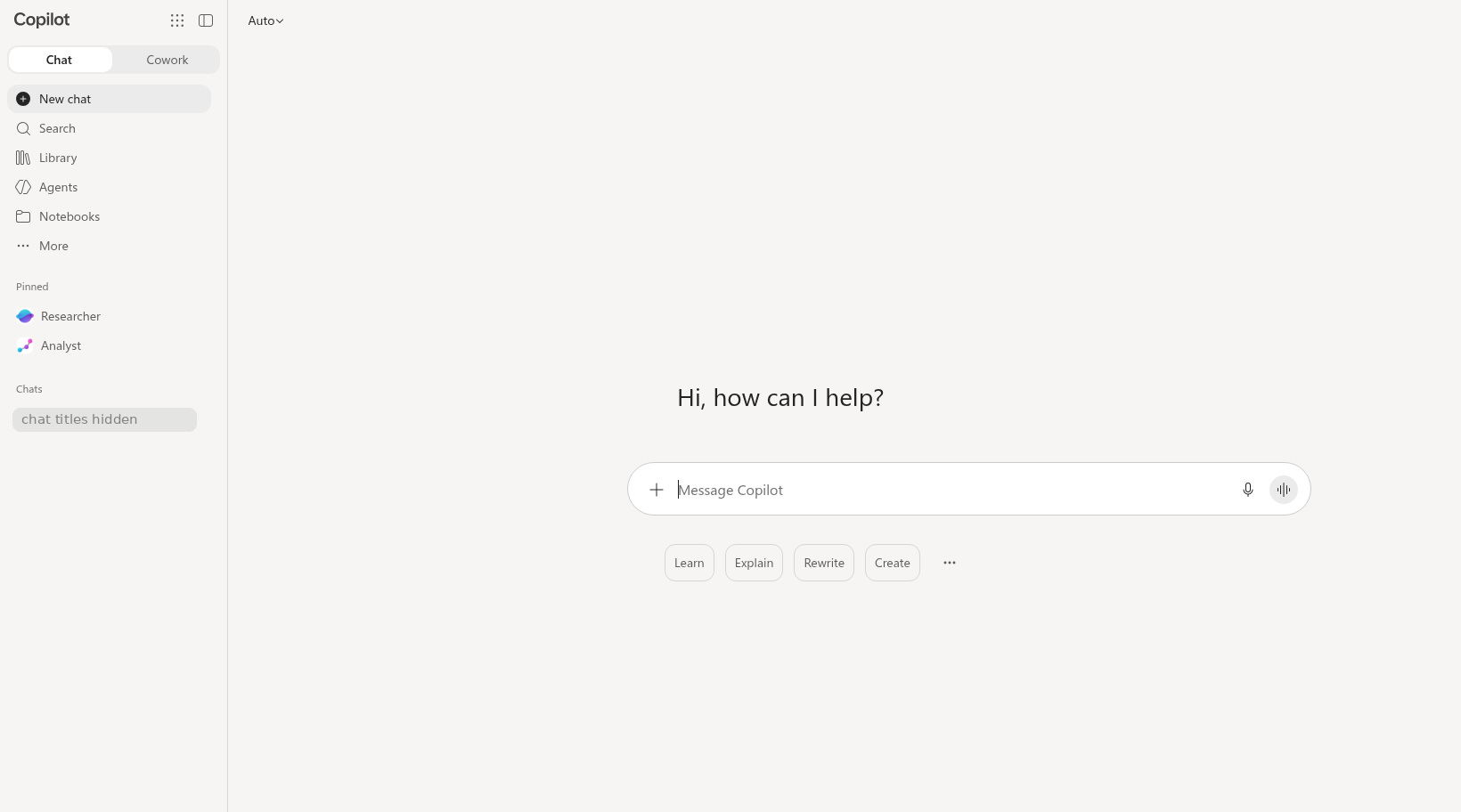
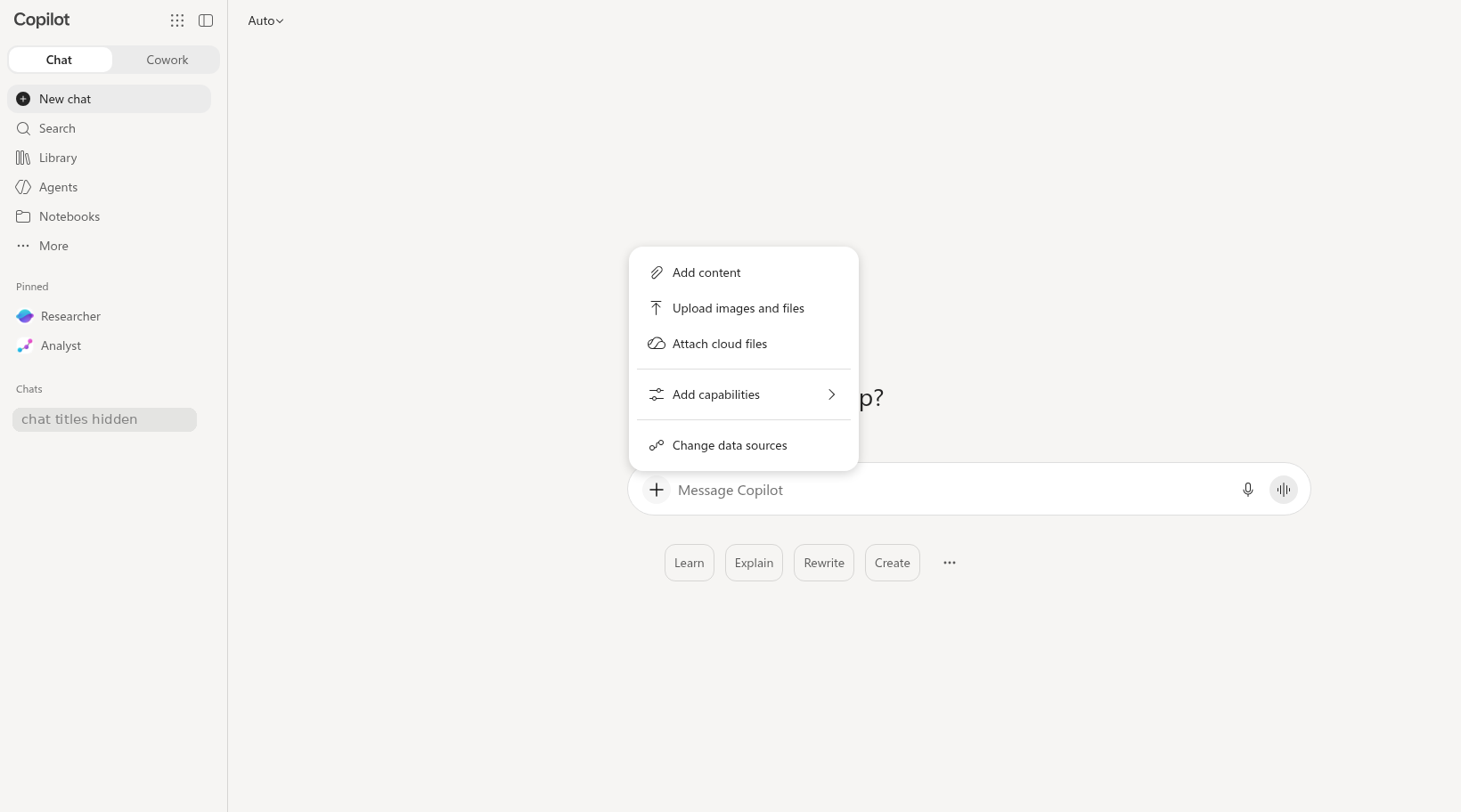
Annotated screenshots (consumer Copilot, opens the image): chat home empty plus button menu
Do it: step by step
Check off each step as you go. Your progress saves in this browser.
Path B (Copilot Chat only)? These steps are for Path A. Use the Path B steps in the Files step instead.
Prompts: vague vs detailed
Follow the brackets. The detailed prompt is built from the four C.H.A.T. parts: [Context], [How come], [Assign task], and [Type of output]. Keep the labels when you paste it; Copilot reads them fine, and they help you check that each part is there.
Compare a vague prompt with a detailed, source-checkable prompt. The activity below separates the request from the Guardrails you need before use.
Use CHATPROMPT to shape the request: Context, How come (why you need it), Assign task, Type of output, Persona, References, Optimize, Modularize, Progression, and Transcendence (expert level: the next useful question after the checked answer). Add Guardrails separately for training-only input, source checking, limits, and the Authorized Owner.
Prompt 1 of 2
Is this summary correct?
[Context] I am checking a one-page procedure summary before it is shared. The Intake team wrote it for new Resident Services staff.
[How come] I need to find errors before new staff rely on the summary.
[Assign task] Cross-check the draft summary I shared (file 01) against the Service Request Procedure I shared (file 02). Use only the procedure. Do not guess or infer missing facts.
[Type of output] Return a table with these columns: statement from the draft, where the procedure addresses it (section or page), status (supported, unsupported, contradicted, or incomplete), risk if wrong, and corrected language.
Why the detailed version works (letter by letter)
- CContext
I am checking a one-page procedure summary before it is shared
- HHow come
I need to find errors before new staff rely on the summary
- AAssign task
Cross-check the draft summary I shared (file 01) against the Service Request Procedure I shared (file 02)
- TType of output
Return a table with these columns: statement from the draft, where the procedure addresses it (section or page), status (supported, unsupported, contradicted, or incomplete), risk if wrong, and corrected language
- RReference
Use only the procedure
- GGuardrail: keep it off-limits
Do not guess or infer missing facts
- GGuardrail: make it checkable
where the procedure addresses it (section or page)
Use CHATPROMPT to shape the request, as described above the first prompt.
Prompt 2 of 2
What's missing?
[Context] Same chat as Prompt 1, with the same files.
[How come] I need to know what the draft leaves out, not only what it gets wrong.
[Assign task] What context from the procedure I shared is missing from the draft?
[Type of output] Separate what the procedure says from your interpretation.
Why the detailed version works (letter by letter)
- CContext
Same chat as Prompt 1, with the same files
- HHow come
I need to know what the draft leaves out, not only what it gets wrong
- AAssign task
What context from the procedure I shared is missing from the draft?
- TType of output
Separate what the procedure says from your interpretation
- GGuardrail: make it checkable
Separate what the procedure says from your interpretation
- OOptimize: refine and recheck
Same chat as Prompt 1
Quiz
Self-check only. Answers stay on your device.
Path B Text Pack and downloads
Download the practice files (Path A)
Path A (full access): these downloads are for you. Save them where Copilot can reach them (OneDrive for the Office app labs). Path B: nothing to download; the files are below as text, ready to paste. Path C: nothing to download; read the text below when you check sources.
Path B (Chat only): short steps
- Select Copy all files + Prompt 1 below, paste it into the chat, and select Send.
- After the answer, copy Prompt 2 of 2 below and send it in the same chat.
- Check the five riskiest rows of Copilot's table against file 02 below. Start with deadlines and who approves.
These prompts work on both paths. They say "I shared," which fits whether you attach or paste the files.
[Context] I am checking a one-page procedure summary before it is shared. The Intake team wrote it for new Resident Services staff.
[How come] I need to find errors before new staff rely on the summary.
[Assign task] Cross-check the draft summary I shared (file 01) against the Service Request Procedure I shared (file 02). Use only the procedure. Do not guess or infer missing facts.
[Type of output] Return a table with these columns: statement from the draft, where the procedure addresses it (section or page), status (supported, unsupported, contradicted, or incomplete), risk if wrong, and corrected language.
[Context] Same chat as Prompt 1, with the same files.
[How come] I need to know what the draft leaves out, not only what it gets wrong.
[Assign task] What context from the procedure I shared is missing from the draft?
[Type of output] Separate what the procedure says from your interpretation.
File 01 - Draft Procedure Summary (has planted errors) (1,562 characters)
FICTIONAL TRAINING FILE - The City of Fernhollow, its staff, residents and data are invented for the CPS HR Microsoft 365 Copilot workshop. Do not use real work data.

DRAFT - SUMMARY OF THE SERVICE REQUEST PROCEDURE
================================================
Prepared by: Intake team (draft for review) · Date: September 29, 2026 · Status: NOT REVIEWED

This one-page summary is intended to help new Resident Services staff understand Service Request Procedure SR-100. Please review before it is shared.

Key points
----------
  1. Residents submit service requests through the online portal, and requests must be written in English.
  2. Every request receives a tracking number at intake.
  3. Staff acknowledge every non-emergency request within 1 business day.
  4. Emergency requests are handled within 3 business days.
  5. Non-emergency requests must receive a response within 10 business days.
  6. Any staff member may extend a deadline by up to 10 additional business days if a site visit is needed.
  7. Requests that are not resolved within 10 business days are automatically escalated to the Division Manager.
  8. Duplicate requests are rejected so staff can focus on new issues.
  9. Requests received on holidays are processed on the next business day.
  10. Request records are retained for 3 years after closing.
  11. Following this procedure guarantees that every request is resolved within 5 business days.
  12. Changes to deadlines require a written revision approved by the Department Director.
Questions? Contact the Intake Lead.
File 02 - Service Request Procedure SR-100 Rev. 3 (3,897 characters)
FICTIONAL TRAINING FILE - The City of Fernhollow, its staff, residents and data are invented for the CPS HR Microsoft 365 Copilot workshop. Do not use real work data.

SERVICE REQUEST PROCEDURE SR-100
================================
Revision 3 · Effective July 1, 2026 · Approved by Renata Vossberg, Department Director · Owner: Resident Services Division


Section 1. Purpose
------------------
This procedure sets the steps and time limits for receiving, routing, responding to, and closing non-emergency and emergency service requests submitted by residents of the City of Fernhollow.

Section 2. Scope
----------------
This procedure applies to all Resident Services staff who receive or work on service requests. It does not apply to code-enforcement complaints, which follow Procedure CE-210.

Section 3. Definitions
----------------------
  - Service request: a resident's request for a City service, repair, or information, received through the online portal, by phone, by email, or in person.
  - Emergency request: a request involving an immediate risk to health or safety, as determined by the Intake Lead or Unit Supervisor.
  - Non-emergency request: any service request that is not an emergency request.
  - Duplicate request: a request that describes the same issue at the same location as an open request.
  - Business day: Monday through Friday, excluding days City offices are closed.

Section 4. Intake
-----------------
4.1 Requests are accepted through the online portal, by phone, by email, and in person, in any language. Staff must use the City's interpretation line when needed.
4.2 Every request receives a tracking number at intake.
4.3 Staff acknowledge every non-emergency request within 2 business days of receipt.

Section 5. Response Deadlines
-----------------------------
5.1 Emergency requests: staff respond within 1 business day of receipt.
5.2 Non-emergency requests: staff respond within 5 business days of receipt. (Revision 3 changed this from 10 business days.)
5.3 "Respond" means the resident receives a substantive reply stating the action the City will take or the information requested. A response is not the same as resolving the request.

Section 6. Exceptions and Extensions
------------------------------------
6.1 The non-emergency response deadline may be extended by up to 10 additional business days when the request requires a site visit or information from a third party.
6.2 Every extension requires the written approval of the Unit Supervisor before the original deadline passes.
6.3 The resident must be notified in writing of the extension, the reason, and the new date.

Section 7. Escalation
---------------------
7.1 A non-emergency request that is not resolved within 15 business days of receipt is reviewed by the Unit Supervisor.
7.2 The Unit Supervisor approves any escalation to the Division Manager.
7.3 A resident may ask for escalation at any time; the Unit Supervisor must reply within 3 business days.

Section 8. Duplicate Requests
-----------------------------
8.1 Duplicate requests are merged with the open request. The resident who submitted the duplicate is notified of the original tracking number.

Section 9. Closing a Request
----------------------------
9.1 A request is closed when the action is complete or the requested information has been provided, and the resident has been notified.
9.2 Request records are retained for 3 years after closing.

Section 10. Changes to This Procedure
-------------------------------------
10.1 Response deadlines and other requirements in this procedure change only by a written revision approved by the Department Director. Emails, meeting notes, and announcements do not change this procedure.
10.2 Revision history: Rev. 1 (2022) original; Rev. 2 (2024) added email intake; Rev. 3 (July 1, 2026) shortened the non-emergency response deadline from 10 to 5 business days.
Path C (Watch and verify): Find the defects by hand: read file 01 against file 02, then compare with the trainer's Copilot run.
Debrief question: Which defect was easiest to miss? File 01 has 10 planted defects: 9 wrong or unsupported statements plus 1 missing step. Finding 8 of the 10 is a pass.