Heads up: this browser is blocking local storage, so your progress will not be saved after you close the page.
Lab 3 · Module 1 · Trust But Verify
Files and Screenshots
Step 1: why this is needed and what each entry does
Open a fresh chat (Open Copilot Chat). A new chat starts with nothing in it, so the only sources are the files you attach next.
- New chat
- Copilot remembers the current conversation. Starting fresh means the answer can only come from what you attach now.
- Work vs personal Copilot
- Both can read attached files. The work app (m365.cloud.microsoft) can also reach your OneDrive and keeps data inside your organization; the personal app cannot.
Step 2: why this is needed and what each entry does
Give Copilot the only files it may use (Attach the files). Everything in the answer should trace back to these files. Attaching them is what makes the answer checkable.
- + or /
- Both open the same attach menu. Slash is faster once you know the file name.
- Upload vs OneDrive
- Upload copies the file into the chat. OneDrive points at the stored file. Either works for this lab.
- Chips above the box
- No chip, no file. If a chip is missing, Copilot will answer from general knowledge and the lab is void.
Step 3: why this is needed and what each entry does
Read the picture, then compare it with the data (Run Prompt 1, then Prompt 2). Prompt 1 makes Copilot read the numbers off the screenshot. Prompt 2 checks them against the spreadsheet. Same chat, so Prompt 2 can see Prompt 1.
- Reading a picture
- Copilot reads the pixels, including small print and footnotes. It can misread a digit, which is why step 4 exists.
- Same chat
- Prompt 2 refers to the numbers Copilot just listed.
Step 4: why this is needed and what each entry does
Catch a misread digit (Check three numbers yourself). A screenshot read wrong by one digit becomes a wrong number in a report. Three spot checks take two minutes.
- Three values
- A mix of a big number, a small one and a date-based one catches most misreads.
- The footnote
- The dashboard has a footnote that changes the meaning of one number. Did Copilot mention it?
Step 5: why this is needed and what each entry does
Decide what you can quote (Check and record). Only numbers you verified in the data go into anything you send.
- Five Checks
- Source: which file. Verification: did you open it. Context: did the caveats survive. Resilience: would it still hold if the data changed. Authorized Owner: who signs off before anyone acts on it.
The prompts for this lab: copy and paste
Same prompts as in the Prompts section and the Do it steps. Paste each one whole.
Overview
What we are doing
- The situation
- A manager wants to paste the Resident Services dashboard into a council report. Dashboards have footnotes that people skip, and numbers read from a picture can be wrong.
- Your role
- You are the person asked to confirm the numbers before the report goes out.
- Your task
- Use Copilot to pull the numbers from the dashboard screenshot. Then compare those numbers with the spreadsheet.
- Files you need
- File 04 (04_Dashboard_Screenshot.png) and file 06 (06_Service_Request_Data.xlsx).
- Done when
- You have a short table showing which values match and which differ. It also notes the limits stated in the dashboard footnote.
- Why it matters
- If the picture and the data behind it disagree, the report is wrong in public. Comparing them takes five minutes.
Check before you finish
- Did Copilot read the dashboard footnote?
How to do it: the basic steps
5 steps, one screen each. Select the ? on a card for why the step is needed and what each entry does.
- Open a fresh chat (Open Copilot Chat)
Why: A new chat starts with nothing in it, so the only sources are the files you attach next.
- m365.cloud.microsoft (work) or the Copilot app
- Chat
- New chat
Sign in at m365.cloud.microsoft with your work account, or open the Copilot app you have access to. Select Chat in the left pane, then New chat so nothing from an earlier chat leaks in.
- Give Copilot the only files it may use (Attach the files)
Why: Everything in the answer should trace back to these files. Attaching them is what makes the answer checkable.
- + (or type /)
- Upload (or OneDrive)
- 04_Dashboard_Screenshot.png and 06_Service_Request_Data.xlsx
- Chips appear
Select the + at the left of the chat box (or type /). Choose Upload from this device, or OneDrive if you saved them there. Pick 04_Dashboard_Screenshot.png and 06_Service_Request_Data.xlsx. Each file shows as a chip above the box. A picture and a spreadsheet: Copilot reads both.
- Read the picture, then compare it with the data (Run Prompt 1, then Prompt 2)
Why: Prompt 1 makes Copilot read the numbers off the screenshot. Prompt 2 checks them against the spreadsheet. Same chat, so Prompt 2 can see Prompt 1.
- Copy prompt (Prompt 1)
- Send
- Copy prompt (Prompt 2)
- Send
Select Show the prompts below. Copy Prompt 1, paste, Send. Copilot describes the screenshot and lists its numbers. Then copy Prompt 2, paste in the same chat, Send.
- Catch a misread digit (Check three numbers yourself)
Why: A screenshot read wrong by one digit becomes a wrong number in a report. Three spot checks take two minutes.
- Pick three values
- Find in file 04
- Find in file 06
Pick three values (for example requests received, open backlog, September average days to resolve). Find each in 04_Dashboard_Screenshot.png and in 06_Service_Request_Data.xlsx. Do all three match what Copilot said?
- Decide what you can quote (Check and record)
Why: Only numbers you verified in the data go into anything you send.
- Footnote read?
- Five Checks
Did Copilot read the footnote? Which numbers matched? Run the Five Checks: Source, Verification, Context, Resilience, Authorized Owner. Then mark the lab steps done.
= why the step is needed and what each entry does. Like this = something you select or click. Like this = something you type or paste.
Microsoft changes these screens often; a label on your screen may differ slightly. If a button is missing, your organization may not have turned the feature on: use the Path B steps.
Where to click
- Copilot
- New chat
- +
- files 04 and 06
Watch the demo video
Demo A: Upload a dashboard screenshot and ask what is easy to miss
Chapters (select one to jump there):
Step-by-step narration (transcript)
Recorded in consumer Copilot with supplied file 04. The demo prompt is a short version of this lab's Prompt 1. No audio. Captions are WebVTT: captions .vtt · chapters .vtt · MP4 (911 KB)
Watch where to click Real screenshots (consumer Copilot) + illustrations
The demo shows where to click, step by step. Steps marked Real screen are screenshots from Copilot (consumer version); your work Microsoft 365 Copilot may look slightly different. The other steps are drawings. The list under the player is the same steps as text.
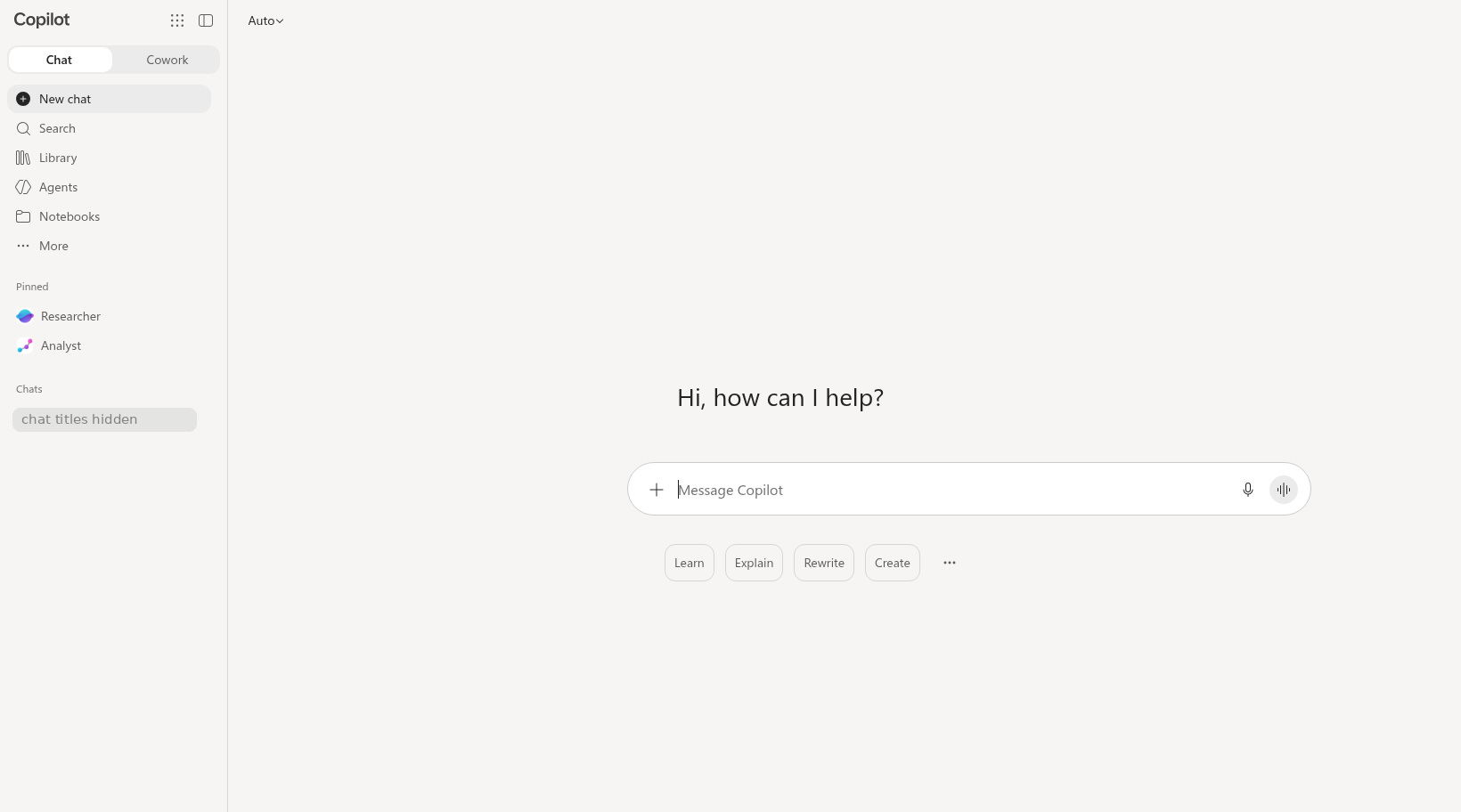
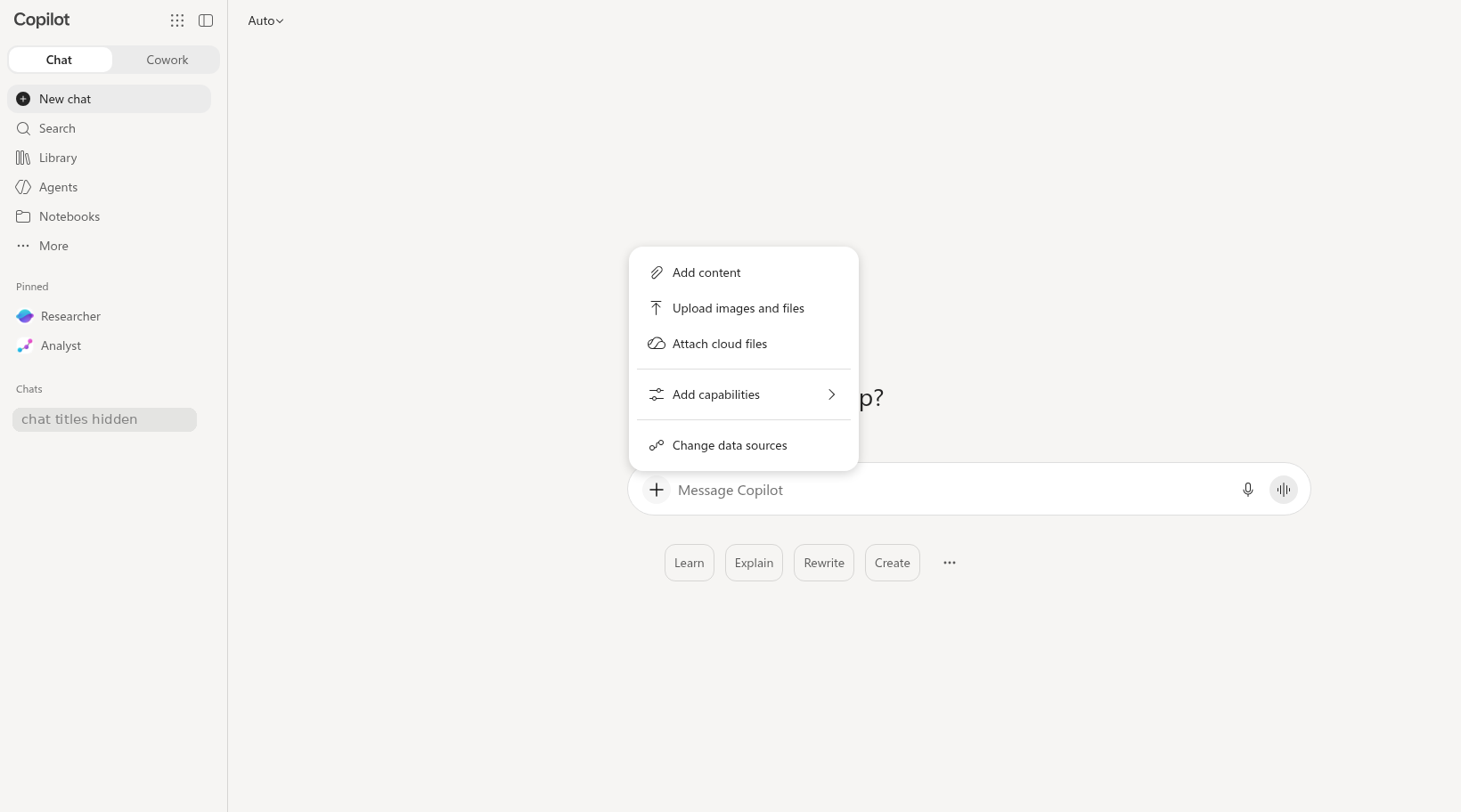
Annotated screenshots (consumer Copilot, opens the image): chat home empty plus button menu
Do it: step by step
Check off each step as you go. Your progress saves in this browser.
Path B (Copilot Chat only)? These steps are for Path A. Use the Path B steps in the Files step instead.
Answer key: dashboard numbers (open after your own check)
- Requests received (YTD) 3,831 = file 06 January to August (3,460) + the dashboard's partial September (371). File 06 with full September: 3,928.
- Requests completed (YTD) 3,708 = file 06 January to August (3,348) + partial September (360). File 06 with full September: 3,800.
- Open backlog 243 = 120 (open on January 1, file 06) + 3,831 - 3,708. File 06 September ending backlog is 248 (full month).
- Avg days to resolve, September: dashboard 7.1 (partial month) vs file 06 6.9 (full month). July 7.6 and August 7.2 match.
- Escalations YTD 102 matches the file 06 total. August is blank (no data), not zero.
- Target 10 business days is out of date. SR-100 Rev. 3, Section 5.2, sets 5 business days.
- First-contact resolution 36.6% cannot be rebuilt from file 06. Using the footnote rule with full September gives 1,268 / 3,473 = 36.5%; file 06 has no partial-September count. Ask the dashboard owner how it was calculated before you quote it.
Prompts: vague vs detailed
Follow the brackets. The detailed prompt is built from the four C.H.A.T. parts: [Context], [How come], [Assign task], and [Type of output]. Keep the labels when you paste it; Copilot reads them fine, and they help you check that each part is there.
Compare a vague prompt with a detailed, source-checkable prompt. The activity below separates the request from the Guardrails you need before use.
Use CHATPROMPT to shape the request: Context, How come (why you need it), Assign task, Type of output, Persona, References, Optimize, Modularize, Progression, and Transcendence (expert level: the next useful question after the checked answer). Add Guardrails separately for training-only input, source checking, limits, and the Authorized Owner.
Prompt 1 of 2
What does this dashboard say?
[Context] Someone wants to quote the Resident Services dashboard in a report. I shared the dashboard as file 04, either as a screenshot or as text that describes the screenshot.
[How come] I need to know exactly what the dashboard shows before anyone quotes it.
[Assign task] Describe the structure of this dashboard first. Then extract every visible metric. Mark anything that is unclear or that you cannot read confidently instead of guessing.
[Type of output] Put the metrics into a table. Keep labels, units, date ranges, and footnotes.
Why the detailed version works (letter by letter)
- CContext
Someone wants to quote the Resident Services dashboard in a report
- HHow come
I need to know exactly what the dashboard shows before anyone quotes it
- AAssign task
Describe the structure of this dashboard first. Then extract every visible metric
- TType of output
into a table
- GGuardrail: make it checkable
Keep labels, units, date ranges, and footnotes
- GGuardrail: keep it off-limits
Mark anything that is unclear or that you cannot read confidently instead of guessing
Use CHATPROMPT to shape the request, as described above the first prompt.
Prompt 2 of 2
Do these numbers match?
[Context] Same chat as Prompt 1, now with the spreadsheet (file 06) shared as well.
[How come] I need to know if the dashboard numbers match the data before anyone quotes them.
[Assign task] Compare the dashboard (file 04) with the spreadsheet I shared (file 06). Do not decide which source is correct.
[Type of output] List values that match, values that differ, and possible reasons. Then tell me what would be unsafe to claim from the dashboard alone.
Why the detailed version works (letter by letter)
- CContext
Same chat as Prompt 1, now with the spreadsheet (file 06) shared as well
- HHow come
I need to know if the dashboard numbers match the data before anyone quotes them
- AAssign task
Compare the dashboard (file 04) with the spreadsheet I shared (file 06)
- TType of output
List values that match, values that differ, and possible reasons
- GGuardrail: people decide
Do not decide which source is correct
- GGuardrail: make it checkable
tell me what would be unsafe to claim from the dashboard alone
Quiz
Self-check only. Answers stay on your device.
Path B Text Pack and downloads
Download the practice files (Path A)
Path A (full access): these downloads are for you. Save them where Copilot can reach them (OneDrive for the Office app labs). Path B: nothing to download; the files are below as text, ready to paste. Path C: nothing to download; read the text below when you check sources.
Path B (Chat only): short steps
Path B uses a text description of the dashboard (file 04), not the image. You practice checking the numbers, not reading a picture.
- Select Copy all files + Prompt 1 below, paste it into the chat, and select Send.
- After the answer, copy Prompt 2 of 2 below and send it in the same chat.
- Check three numbers yourself in the file text below (requests received, open backlog, September average days to resolve), then compare with the answer key in Do it.
These prompts work on both paths. They say "I shared," which fits whether you attach or paste the files.
[Context] Someone wants to quote the Resident Services dashboard in a report. I shared the dashboard as file 04, either as a screenshot or as text that describes the screenshot.
[How come] I need to know exactly what the dashboard shows before anyone quotes it.
[Assign task] Describe the structure of this dashboard first. Then extract every visible metric. Mark anything that is unclear or that you cannot read confidently instead of guessing.
[Type of output] Put the metrics into a table. Keep labels, units, date ranges, and footnotes.
[Context] Same chat as Prompt 1, now with the spreadsheet (file 06) shared as well.
[How come] I need to know if the dashboard numbers match the data before anyone quotes them.
[Assign task] Compare the dashboard (file 04) with the spreadsheet I shared (file 06). Do not decide which source is correct.
[Type of output] List values that match, values that differ, and possible reasons. Then tell me what would be unsafe to claim from the dashboard alone.
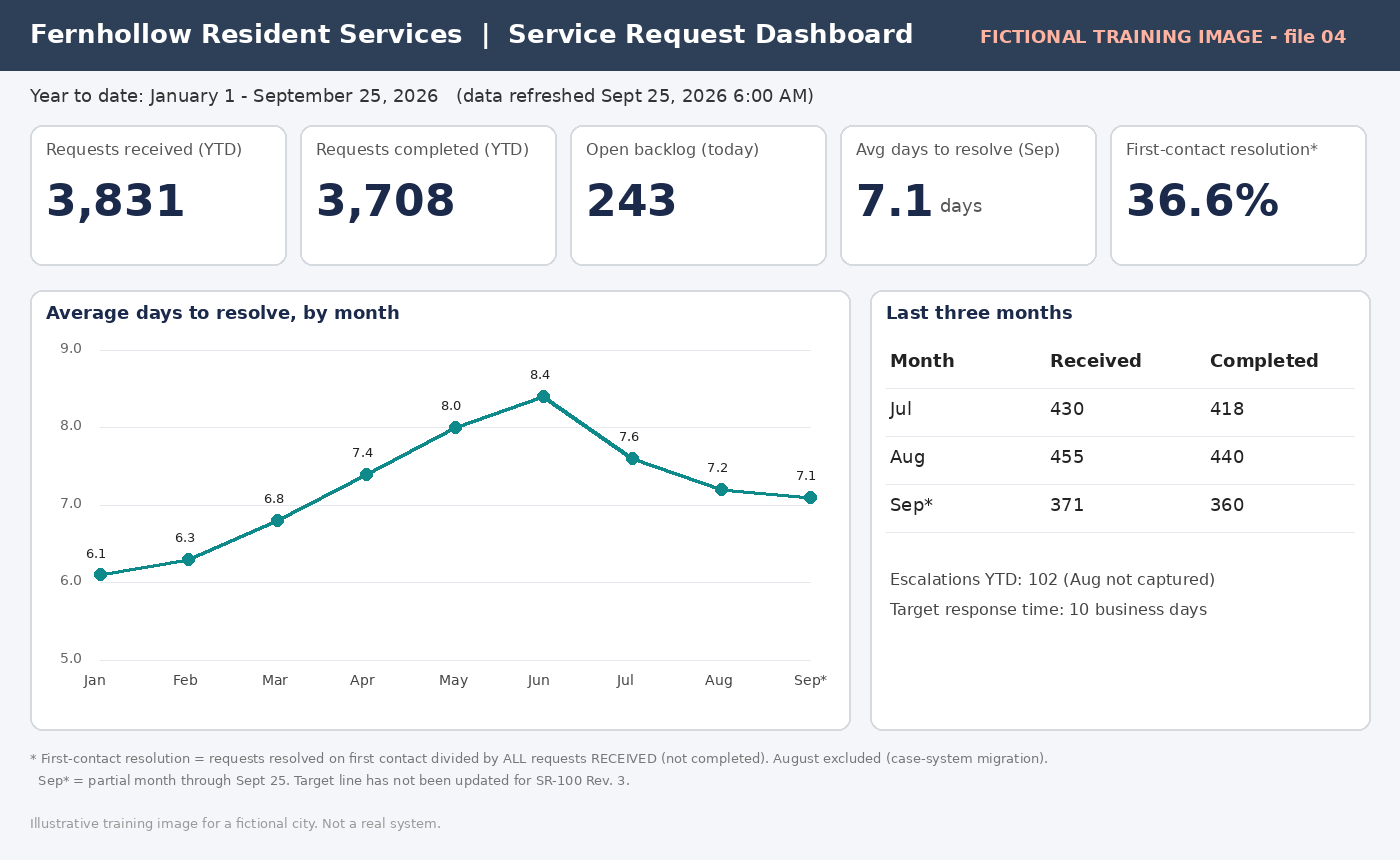
File 04 - Dashboard Screenshot (text description) (1,300 characters)
FICTIONAL TRAINING FILE - The City of Fernhollow, its staff, residents and data are invented for the CPS HR Microsoft 365 Copilot workshop. Do not use real work data.

FILE 04 - DASHBOARD SCREENSHOT (text description for Path B)
Use this if you cannot upload the image. It describes everything visible in 04_Dashboard_Screenshot.png.

Title bar: Fernhollow Resident Services | Service Request Dashboard
Date range: Year to date, January 1 - September 25, 2026 (data refreshed Sept 25, 2026 6:00 AM)

Tiles:
  - Requests received (YTD): 3,831
  - Requests completed (YTD): 3,708
  - Open backlog (today): 243
  - Avg days to resolve (Sep): 7.1 days
  - First-contact resolution*: 36.6%

Line chart - Average days to resolve, by month:
  Jan 6.1 | Feb 6.3 | Mar 6.8 | Apr 7.4 | May 8.0 | Jun 8.4 | Jul 7.6 | Aug 7.2 | Sep* 7.1

Table - Last three months (Received / Completed):
  Jul 430 / 418
  Aug 455 / 440
  Sep* 371 / 360
Escalations YTD: 102 (Aug not captured)
Target response time: 10 business days

Footnote (small grey text at the bottom):
  * First-contact resolution = requests resolved on first contact divided by ALL requests RECEIVED (not completed).
    August excluded (case-system migration).
  Sep* = partial month through Sept 25. Target line has not been updated for SR-100 Rev. 3.
File 06 - Service Request Data (spreadsheet as text) (1,366 characters)
FICTIONAL TRAINING FILE - The City of Fernhollow, its staff, residents and data are invented for the CPS HR Microsoft 365 Copilot workshop. Do not use real work data.

FILE 06 - SERVICE REQUEST DATA (text version of the spreadsheet)
Sheet: Monthly Data (Excel table name: ServiceRequests)
Blank = no data; 0 = measured and zero. Ending Backlog = Beginning Backlog + Received - Completed.

Month | Beginning Backlog | Requests Received | Requests Completed | Resolved on First Contact | Avg Days to Resolve | Escalated | Ending Backlog | Notes
Jan 2026 | 120 | 410 | 395 | 150 | 6.1 | 12 | 135 |
Feb 2026 | 135 | 398 | 380 | 141 | 6.3 | 9 | 153 |
Mar 2026 | 153 | 445 | 412 | 160 | 6.8 | 0 | 186 | No escalations recorded (confirmed zero)
Apr 2026 | 186 | 460 | 418 | 155 | 7.4 | 14 | 228 |
May 2026 | 228 | 472 | 430 | 149 | 8.0 | 18 | 270 |
Jun 2026 | 270 | 390 | 455 | 170 | 8.4 | 21 | 205 | Focused effort to clear older requests
Jul 2026 | 205 | 430 | 418 | 162 | 7.6 | 15 | 217 |
Aug 2026 | 217 | 455 | 440 |  | 7.2 |  | 232 | Case-system migration: first-contact and escalation data not captured (blank = no data)
Sep 2026 | 232 | 468 | 452 | 181 | 6.9 | 13 | 248 |

Lab 6 measures:
Completion Rate = Requests Completed / Requests Received x 100
First-Contact Resolution Share of Completed Requests = Resolved on First Contact / Requests Completed x 100
Path C (Watch and verify): Find the footnote in file 04 yourself and compare three numbers to file 06.
Debrief question: What does the footnote change?